How to Upgrade an AKS Cluster Version from Azure Portal
Share the post "How to Upgrade an AKS Cluster Version from Azure Portal"
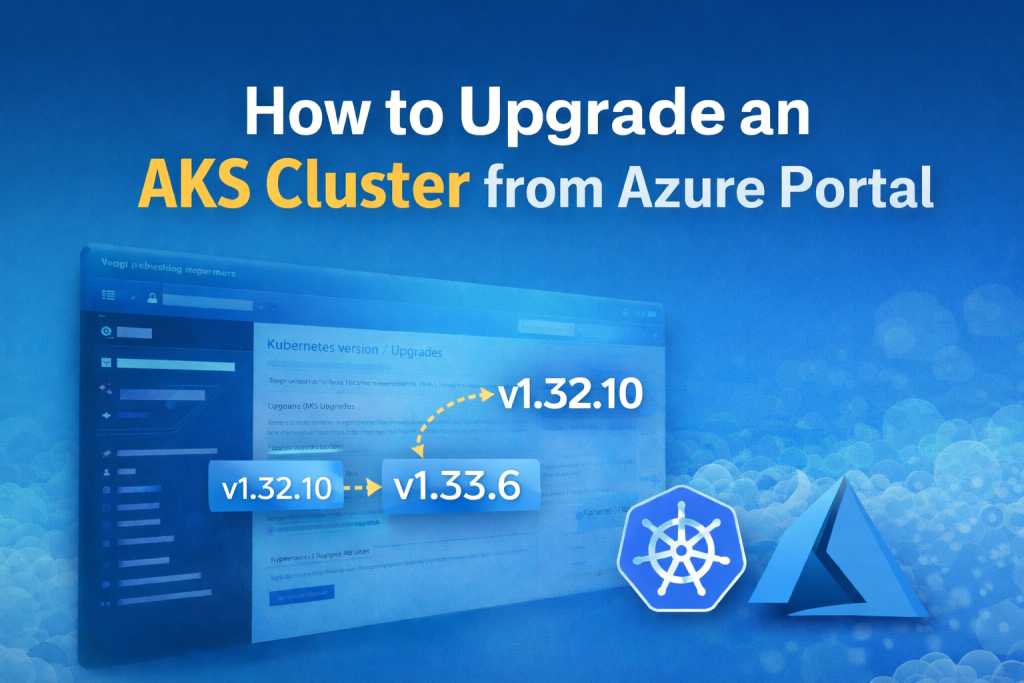
Azure Kubernetes Service (AKS) clusters must be upgraded regularly to stay supported and secure. In this guide, we will walk through how to upgrade an AKS cluster from version 1.32.10 to 1.33.6 using the Azure Portal.
This upgrade ensures the cluster runs on a supported Kubernetes version and benefits from the latest fixes and improvements.
AKS Upgrade Path
v1.32.10 → v1.33.6
Only one minor version upgrade is performed in this process.
Step-by-Step AKS Upgrade Using Azure Portal
Step 1: Login to Azure Portal
- Go to https://portal.azure.com
- Open Kubernetes Services
- Select your AKS Cluster
Step 2: Navigate to Upgrade Section
- In the AKS cluster menu
- Click Settings
- Select Kubernetes version / Upgrades
Azure will display available Kubernetes versions for upgrade.
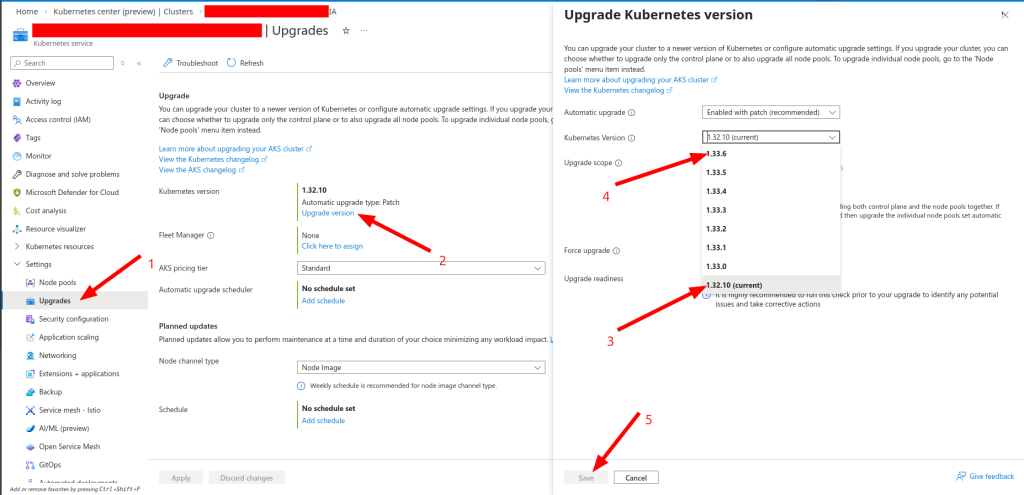
Step 3: Select Target Version
Choose:
v1.33.6
Click Upgrade to start the upgrade process.
Step 4: Monitor Upgrade Process
During the upgrade:
- Azure creates new nodes with Kubernetes v1.33.6
- Old nodes are drained
- Pods are rescheduled to new nodes
- Old nodes are automatically removed
This rolling upgrade helps minimize downtime.
Expected Downtime
Each node pool may experience:
5–15 minutes downtime depending on cluster size and workload rescheduling.
Total upgrade time usually takes around 1 hour.
Post-Upgrade Validation
After the upgrade completes, verify the cluster:
Check Node Status
kubectl get nodes
Check Pods
kubectl get pods -A
Ensure all workloads are running normally.
Best Practices
✔ Schedule upgrades during maintenance windows
✔ Backup Kubernetes manifests before upgrading
✔ Monitor workloads during upgrade
✔ Validate applications after upgrade
Conclusion
Upgrading your AKS cluster from v1.32.10 to v1.33.6 through the Azure Portal is a simple and safe process when performed using Azure’s rolling upgrade mechanism. Proper monitoring and validation help ensure minimal downtime and stable workloads.